
Set up your organisation
The five guided steps that turn your verified company into a working account, in the order they appear.
Version 1.0 · Last updated
When you would do this
Do this once, the first time you sign in as the person setting up your company. If a colleague invited you to an existing organisation, you do not do this. See "Sign in and secure your account" instead.
You can also run these steps again later if you create a second organisation.
Steps
- Set up your authenticator app. Scan the code with an authenticator app on your phone, then enter the six-digit code it shows. Save the recovery key you are given somewhere safe and offline. You will need it if you lose your phone.
- Register a passkey. Confirm with your device: Face ID, Touch ID, Windows Hello, or a hardware security key. Use a device you control and expect to keep.
- Enter your account and company details. Your first and last name, your company's legal name, country, business address, phone number, VAT number if you have one, and the currency you want balances displayed in.
- Set up your team. Choose whether you are operating solo or as a team, invite the colleagues who will help run the treasury, and set your signing threshold: how many signers must approve a payment. See "Set your signing quorum".
- Choose your policies. Pick a starting template, Standard or Strict, then adjust the individual controls if you want. See "Set your policy thresholds".
Use the Continue button to move forward. The step indicators along the top are not clickable, and you cannot skip a step or come back to an earlier one out of order.
What to expect
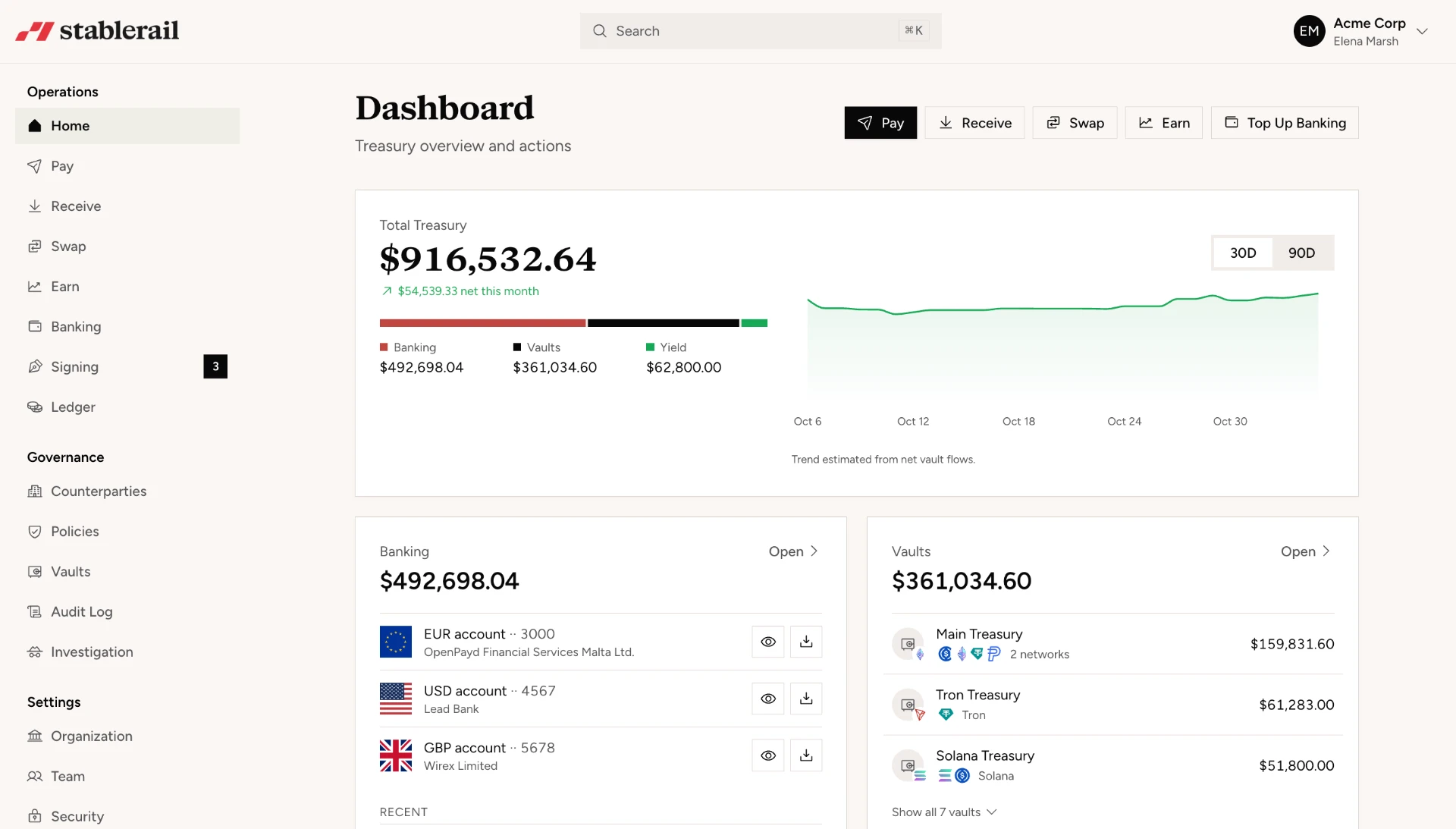
When you finish the last step, your wallets are created and you land on the dashboard. This takes a moment.
You are the Admin of this organisation. That role cannot be granted by invitation, so nobody you invite can become an Admin from the invitation itself. See "Understand roles and permissions".
Your policies and signing threshold are not permanent. Both can be changed later, though changing them is itself a governed action that has to be signed.
Common problems and what they mean
The authenticator code is rejected. Your phone's clock has drifted from real time. Turn on automatic time setting on the device and try again.
You cannot continue past the team step. You need enough signers to satisfy the threshold you have chosen. Either invite more signers or lower the threshold.
You lost the recovery key before finishing. Restart the authenticator step and generate a new one. Do not carry on without saving it.
You do not see your wallets afterwards. Give the page a moment and refresh. Wallet creation happens at the end of the last step.