
Create a payment request
Preparing an outbound payment and sending it for approval, whether to a saved counterparty or a new address.
Version 1.0 · Last updated
When you would do this
Whenever you need to pay someone. Admins, Signers and Requesters can all create a payment. Creating one does not send it.
Steps
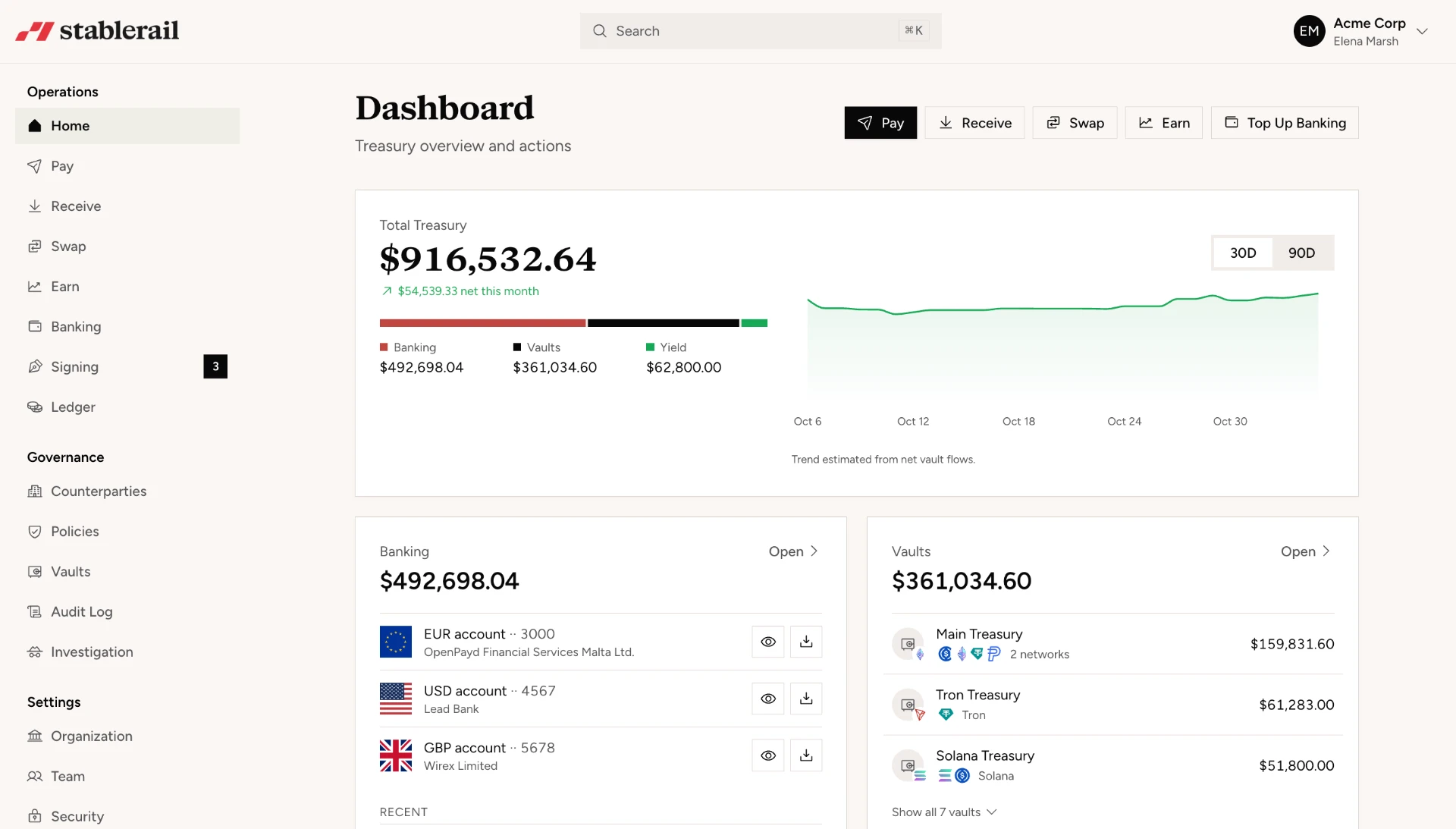
- Go to Operation › Pay.
- Choose the tab that fits: Counterparty to pay someone in your directory, New Address to pay an address you have not saved, Internal to move funds between your own vaults, or Batch to pay many recipients at once.
- Choose the source vault to pay from.
- Choose the recipient. On the Counterparty tab, pick the counterparty and then which of their registered addresses to use. The screen shows when you last paid them and how much.
- Enter the amount and confirm the asset and network. Check the network carefully. See "Supported networks and assets".
- Attach documentation if your policy requires it, or if it will help whoever approves this.
- Select Run checks.
- Review the risk result, then confirm to send it to the signing queue.
Paying a new address
The New Address tab asks for a written reason justifying payment to an unverified address. This is not a formality: it is what an approver and later an auditor will read.
You can save the address as a counterparty at the same time, which is worth doing for anyone you expect to pay again.
What to expect
Once you confirm, the payment becomes a request waiting in Operation › Signing. It has not moved any money.
What happens next depends on the risk result:
- PASS: it is ready to sign.
- FLAG: it is created but locked. Someone must resolve the flag before it can be signed. See "Resolve a flagged payment".
- BLOCK: it cannot be sent. It can only be rejected and archived.
If you are a Requester, your work is done. A Signer or Admin takes it from here.
If you are a Signer and the amount is within your self-approval limit, you may be able to sign it yourself immediately. Above that limit it needs a second person. See "Understand self-approval limits".
Common problems and what they mean
"This counterparty has no registered addresses." Add one on the counterparty record first.
Checks sit on "Checking" for a while. Screening is running. You can cancel the request while it is checking if you created it in error.
"Unusually high network fee." The network is congested. You can wait, or choose a slower fee option, or proceed.
The amount field will not accept your figure. You are trying to send more than the vault holds, or more than is spendable once the network fee is reserved.